
Introduction
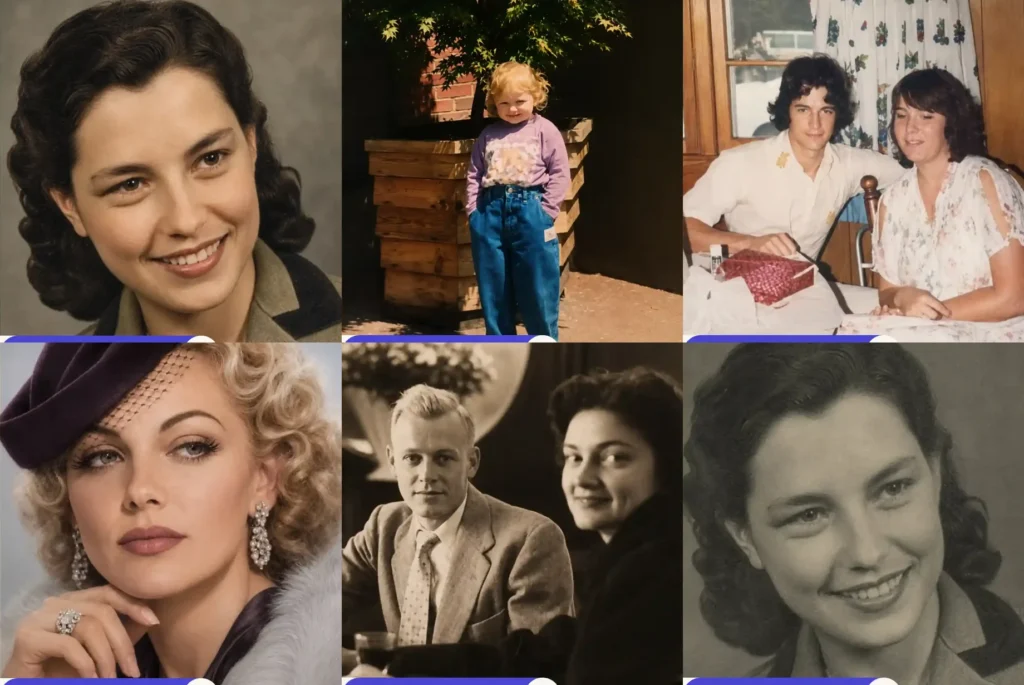
I have tested dozens of photo restoration prompts on ChatGPT, and the fastest way to fix an old or damaged photo is to upload a clear picture and tell the AI exactly what is wrong with it, torn edges, faded color, scratches, or blur, instead of just saying “make this look better.” A vague prompt like that almost always gives you a soft, plastic-looking face, because the AI ends up smoothing the damage and the person’s features at the same time.
The real trick with old photo restoration is picking the right prompt for the right problem. A ripped photo needs a very different set of instructions than a yellowed one, and a photo you clicked on your phone from a table needs a completely different approach if you want it to look like a real digital scan. Below are six simple, tested prompts for the most common photo problems people run into with old family pictures, from torn corners to a phone photo that needs to look like it came off a proper scanner. Each one works directly in ChatGPT, and the same prompt also works if you are using Gemini AI instead.
6 Ready to Use Photo Restoration Prompt
Torn Old Photo Repair Prompt
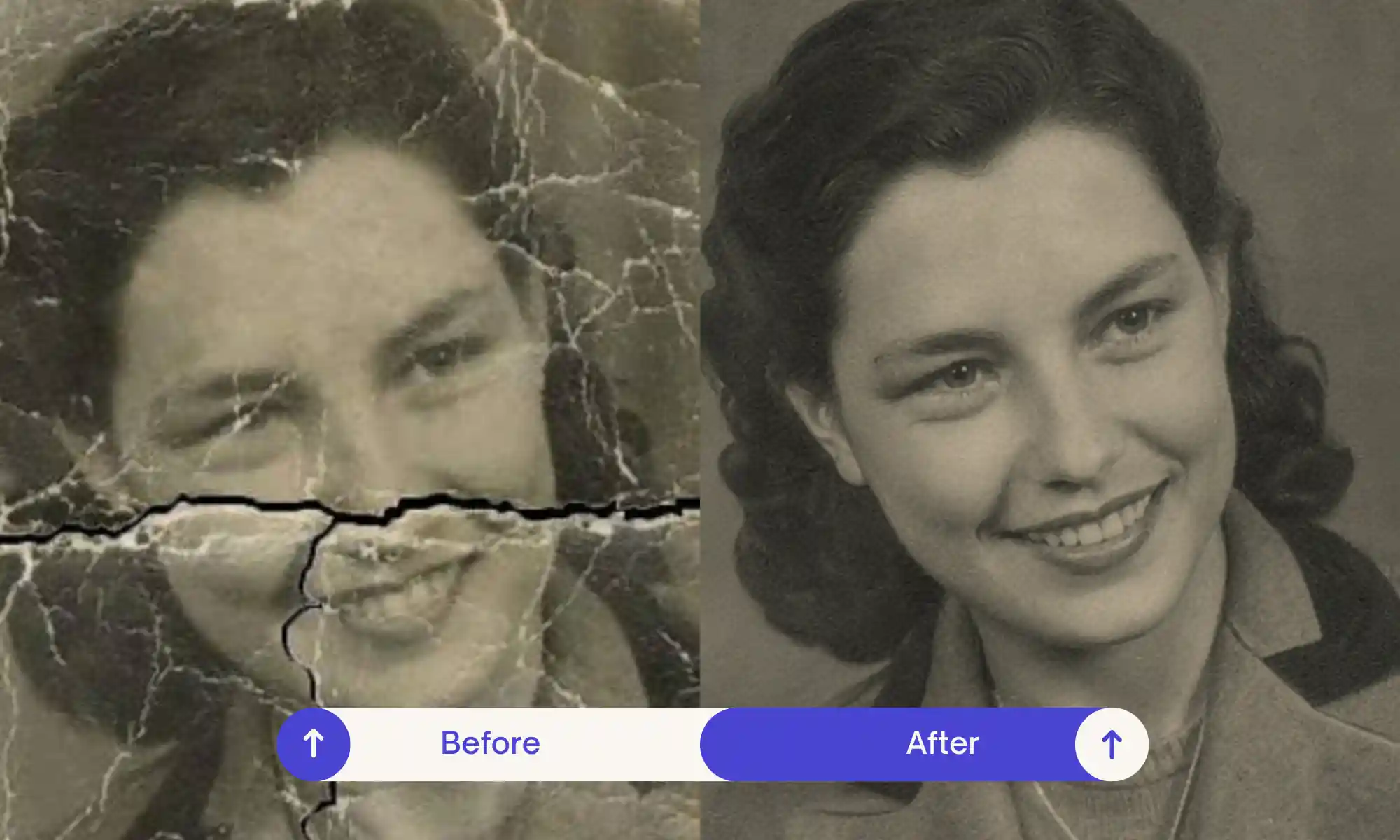
Faded Photo Color Fix Prompt
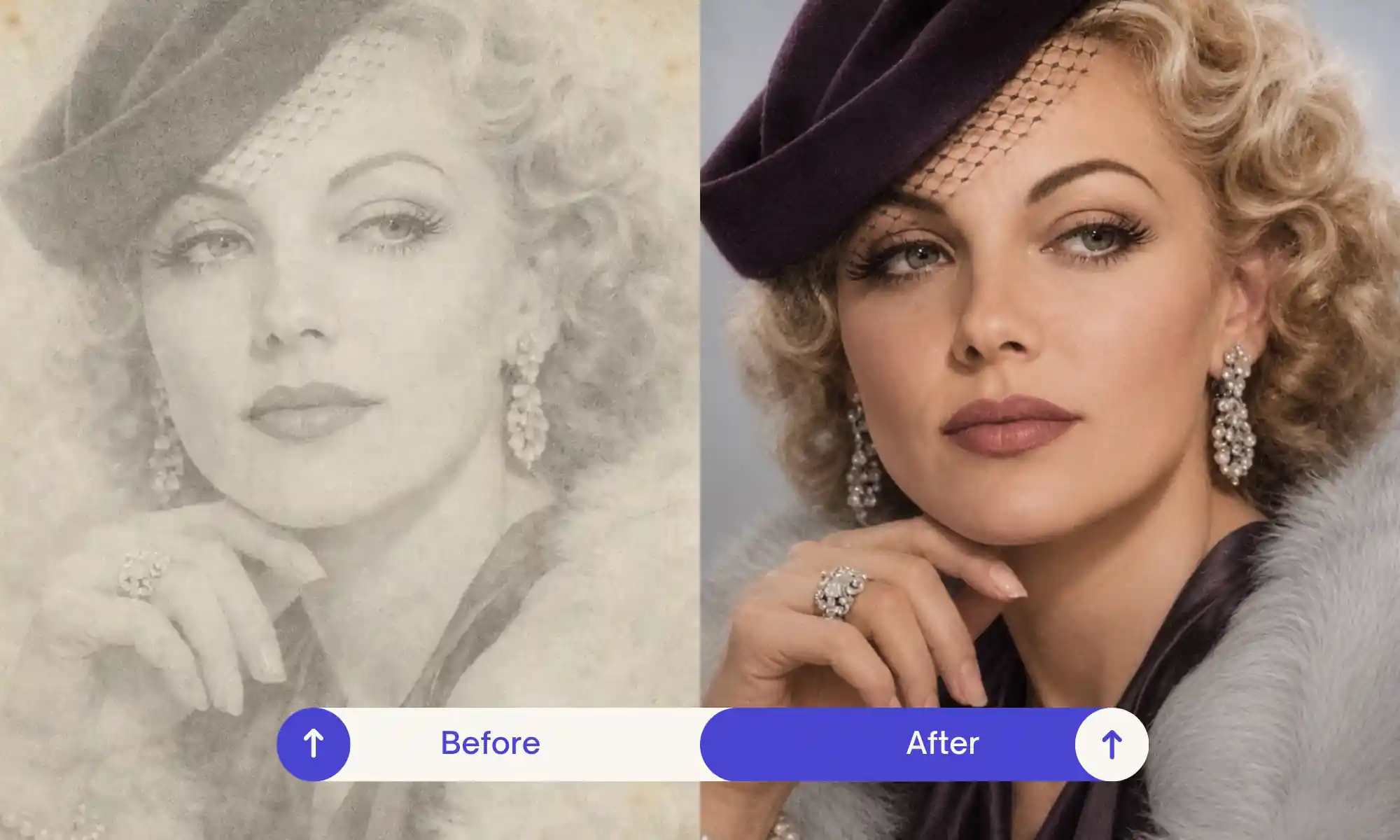
Scratched Photo Cleanup Prompt
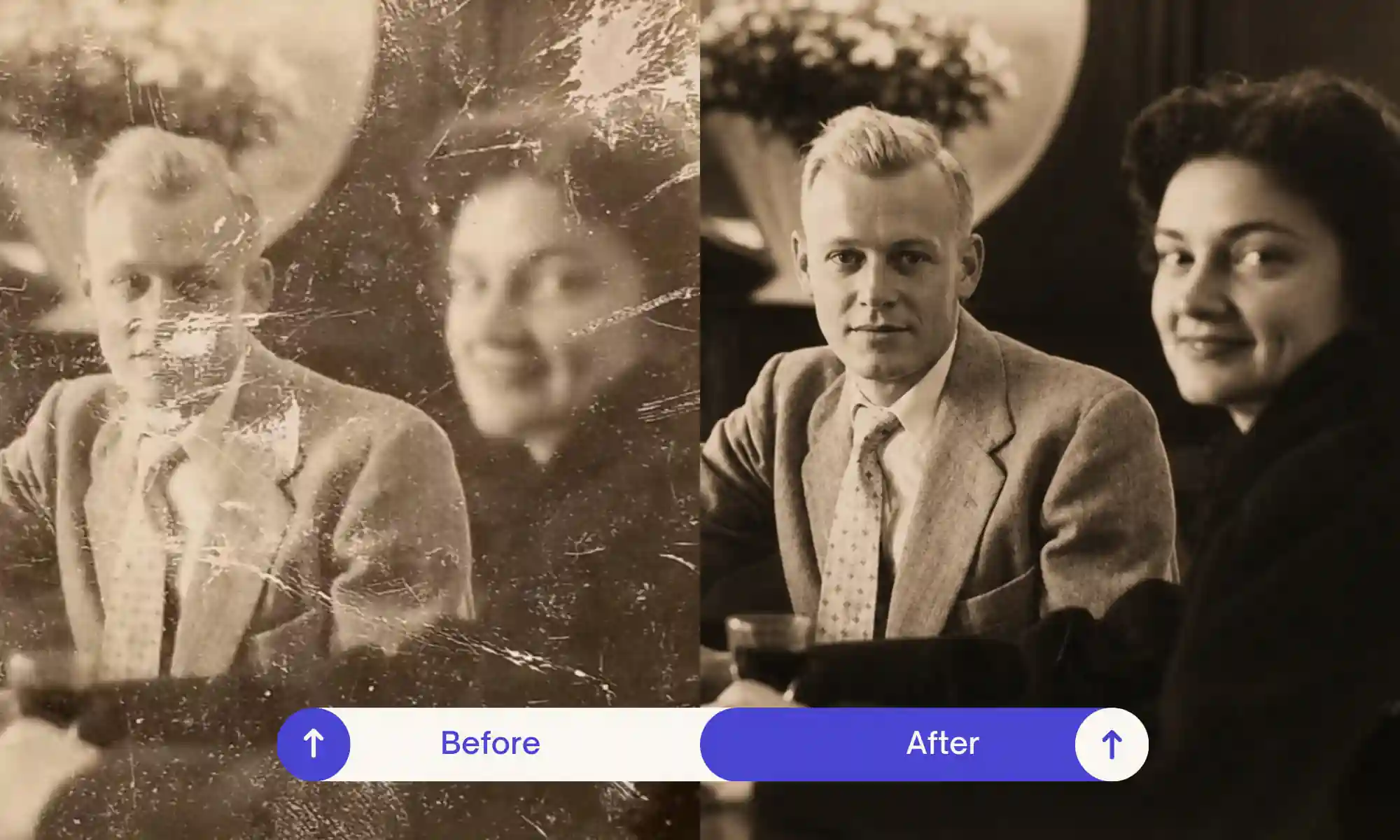
Blurry Old Photo Sharpening Prompt
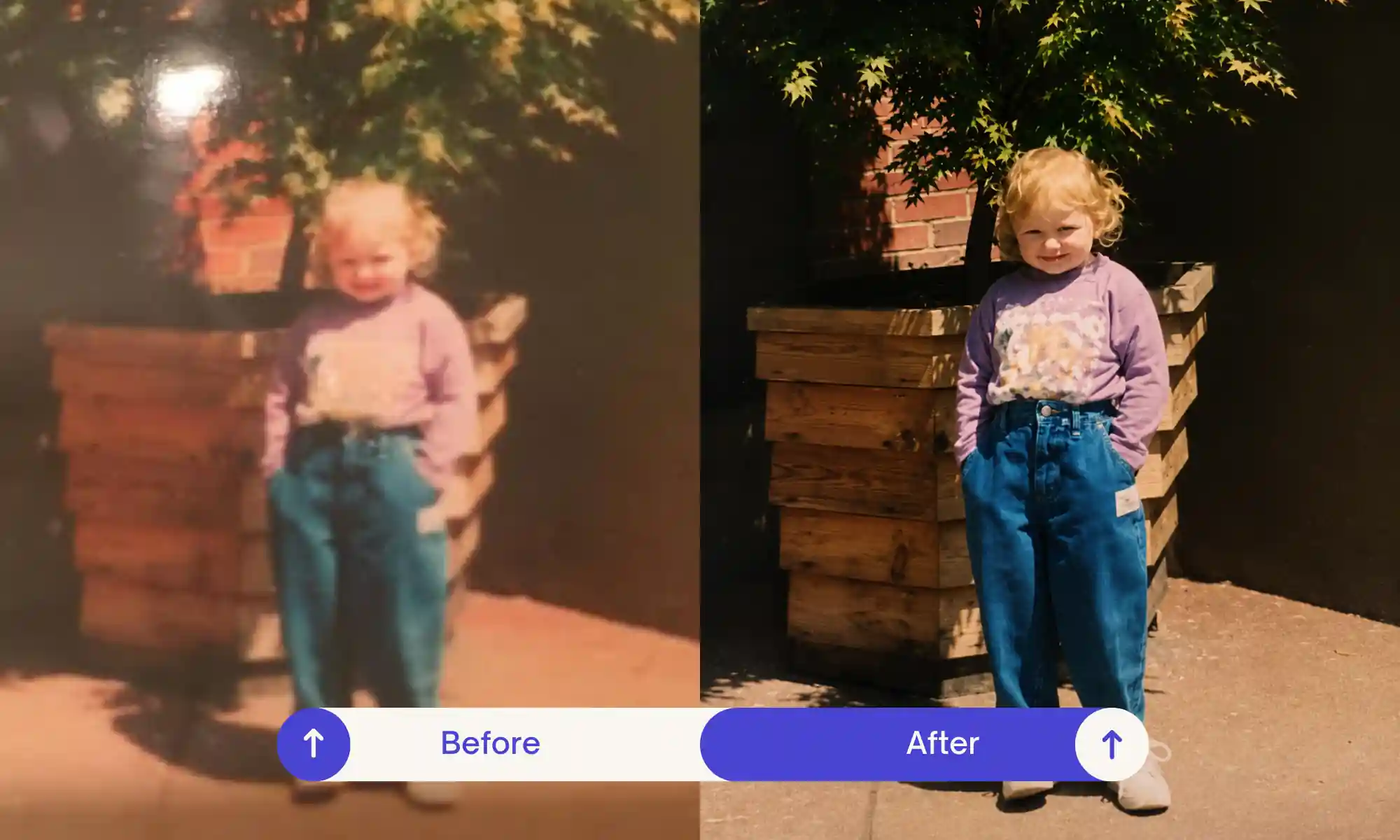
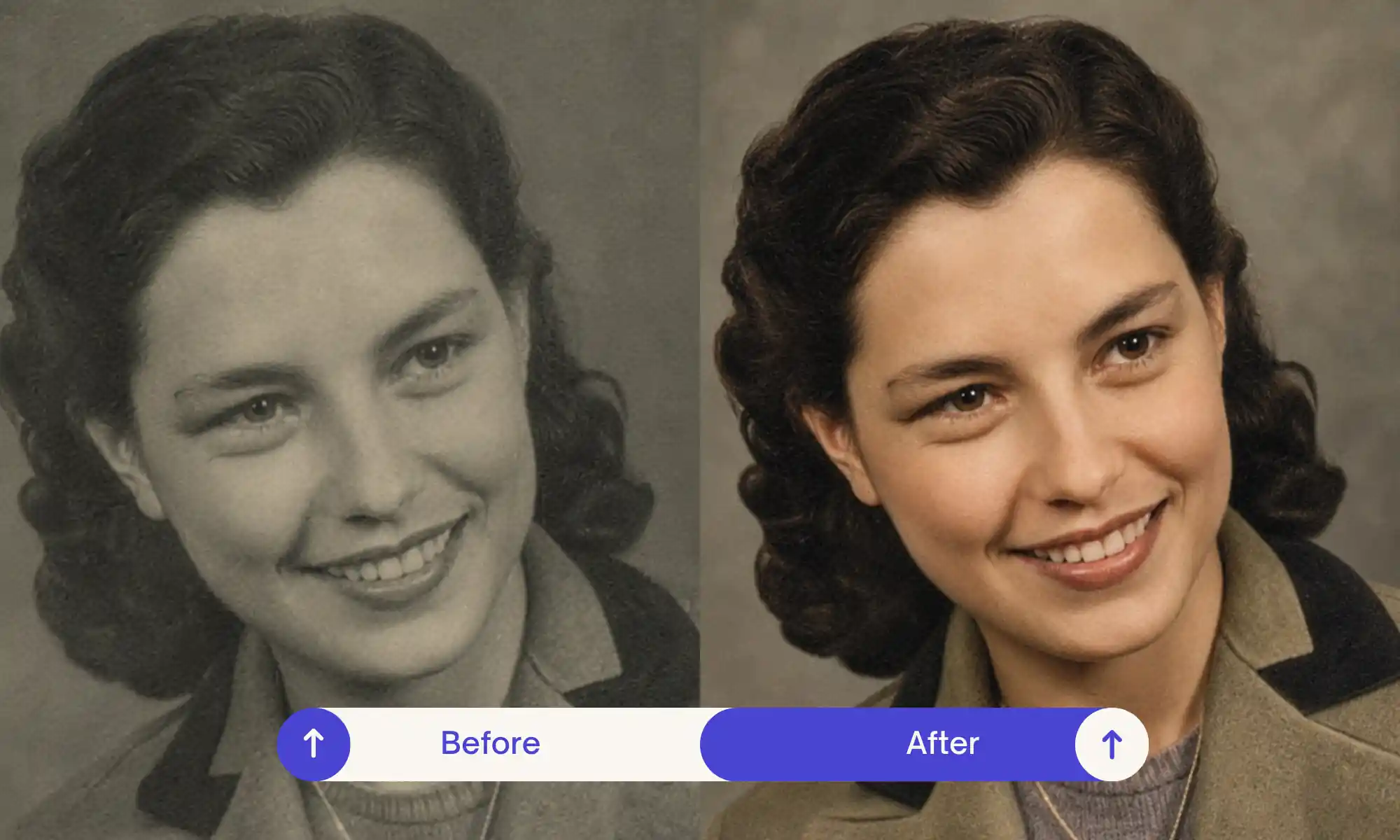
Black and White to Color Photo Prompt
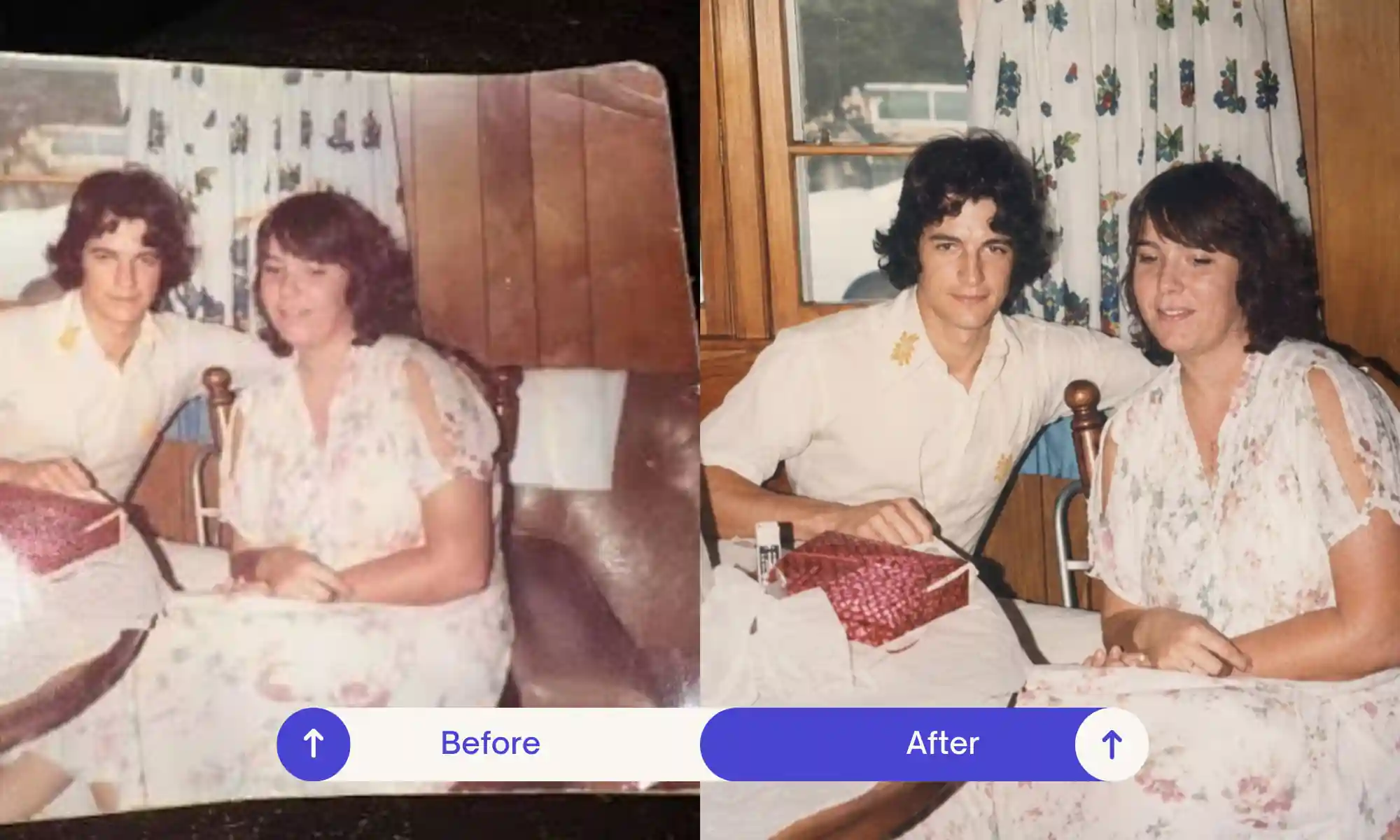
Phone-Captured Photo to Digital HD Scan
How to use
Always start with the clearest photo you have, since a blurry or dark scan gives ChatGPT less to work with. For the torn photo repair prompt, make sure the parts of the photo that are not damaged are clearly visible, because ChatGPT looks at those good parts to figure out what the torn or missing area should look like. If you only have a phone photo of a printed picture lying on a table, use the phone-to-digital-scan prompt first, before trying anything else on that image, since it clears out the background, glare, and tilted angle so the rest of the prompts have a clean photo to work on. For the black-and-white to color prompt, I always mention the rough decade or place the photo was taken in, since that small detail helps ChatGPT choose skin tones and clothing colors that actually match the period instead of guessing something too modern.
Tips for best results
In my own testing, the scratched photo cleanup prompt works much better on a higher-quality scan, because on a low-quality image, small scratches can get mixed up with hair or fabric texture and end up staying in the final result. With the blurry photo sharpening prompt, I got the most reliable results when the face was at least somewhat visible in the original photo. On photos that are completely out of focus, ChatGPT has to guess too much, and the face can come out looking slightly off. One more thing I noticed with the phone-to-digital-scan prompt: if there is strong flash glare right across someone’s face, it helps to retake the phone photo from a slight angle first, since glare over a face is much harder for the AI to clean up than glare on the background.
FAQs
Can I restore a photo I only have as a phone picture, not a scanner scan?
Yes, that’s exactly what the phone-captured photo prompt is for. It removes the table, hands, or wall in the background, straightens out the angle so the photo looks flat instead of tilted, and cleans up glare or shadows from your camera flash, so you end up with a photo that looks like it was scanned properly, even though you just clicked it with your phone.
Will the black-and-white to color conversion pick accurate colors for an old photo?
ChatGPT can’t know the exact original colors since a black-and-white photo doesn’t hold that information, so it makes a smart guess based on realistic skin tones and the kind of clothing and settings common to that period. If you tell it roughly when or where the photo was taken, the AI colorization usually looks a lot more believable.
Does the scratch removal prompt risk blurring the person’s face?
No, this prompt is written so ChatGPT keeps the face sharp while it cleans the scratches off the surface, since removing scratches and softening a face are two separate things. If a result still comes out looking a bit soft, just run the same photo restoration prompt again on a slightly higher-quality version of the photo and it usually fixes itself.
Only need a sharper photo? The photo quality enhancer prompts are quicker. And these self hug childhood photo prompts turn an old photo into a sweet memory.
Conclusion
Old family photos usually have some kind of damage, a tear, a faded corner, a scratch, or just years of sitting in a drawer, and that’s completely normal. What matters is that you don’t need any editing skills or expensive software to fix them anymore. A good photo restoration prompt on ChatGPT can repair tears, bring back faded colors, clean up scratches, sharpen blur, add color to a black-and-white photo, or turn a rushed phone picture into a clean digital scan, all from a simple text prompt. Try the one that matches your photo’s exact problem, and if the first result isn’t perfect, running it again on a slightly better quality image usually gets you there.