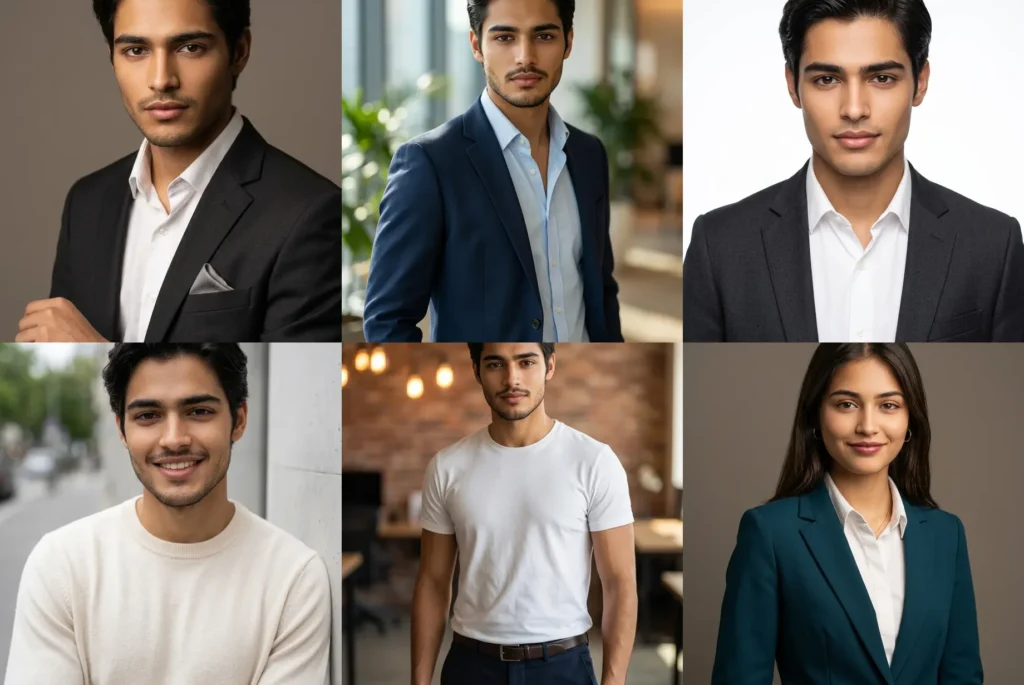
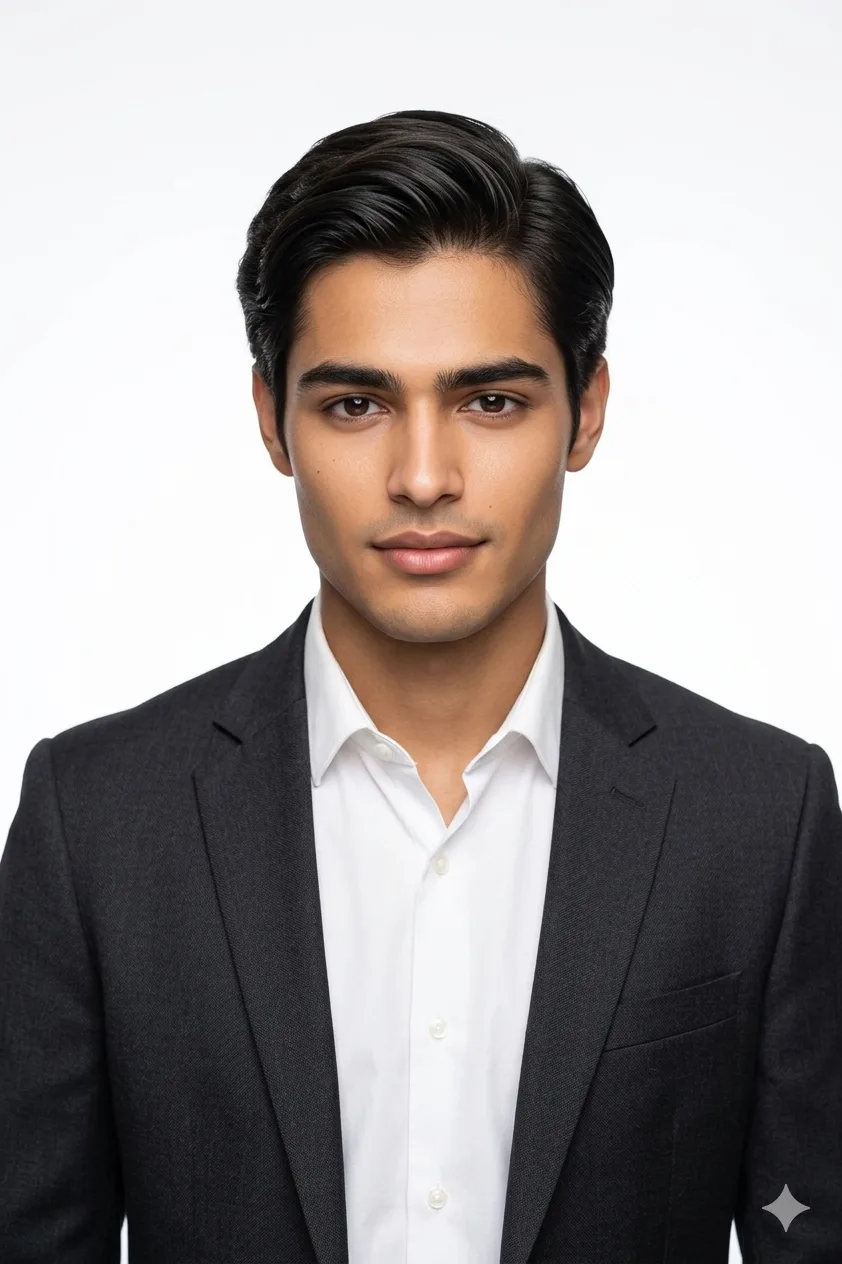
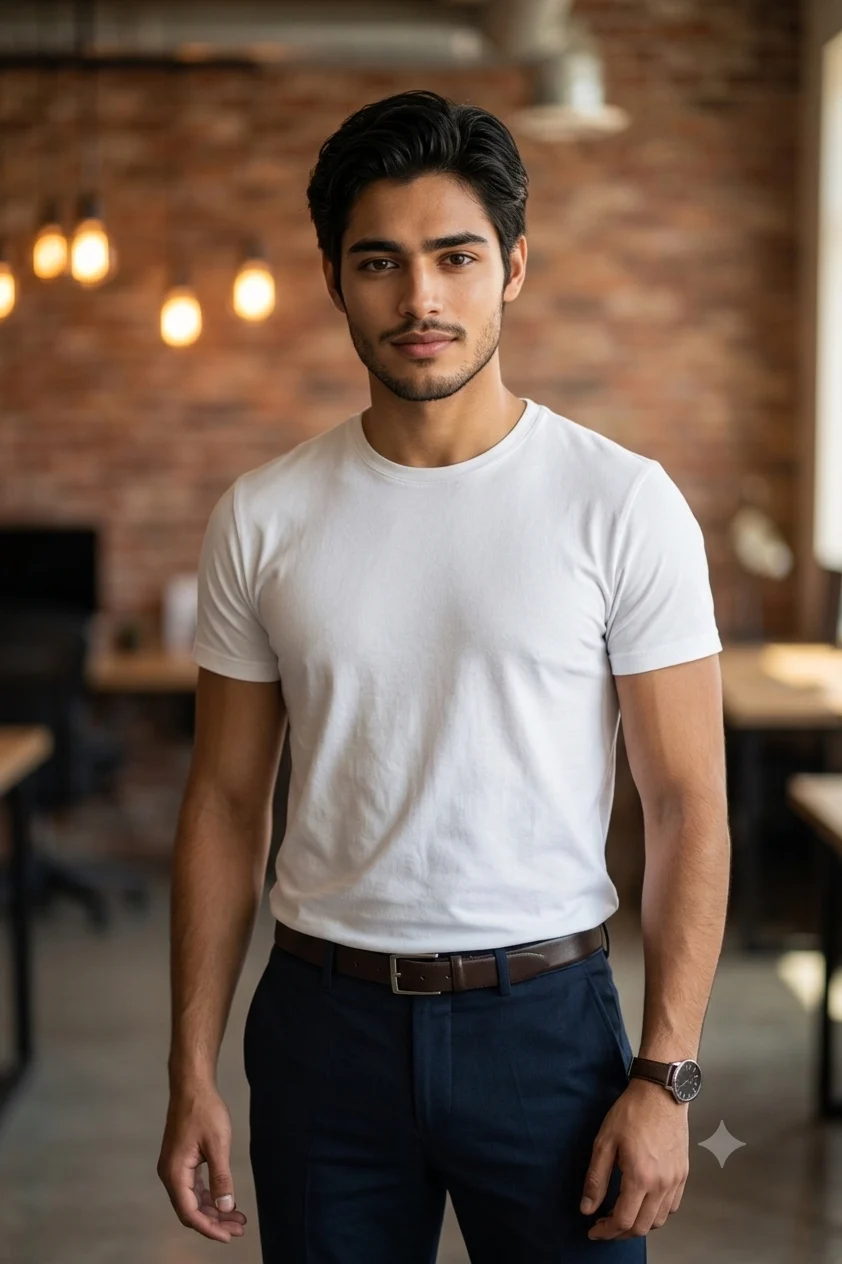
💡 How to Generate a Free Professional LinkedIn Headshot with Gemini AI
Upload a clear selfie to Google Gemini or ChatGPT, copy one of the five specialized corporate prompts below, and execute it. Every prompt includes the core parameter:
“Use the face, skin tone, facial features, and hair of the person in the uploaded reference photo exactly as shown.”
Choose between Dark Suit LinkedIn, Corporate Bio, Outdoor Smart Casual, Formal Resume, or Startup Founder styles.
[ipl_social_links]
Introduction
A professional photo prompt is a detailed text instruction that tells Gemini AI exactly what outfit, lighting, pose, and background to generate around your uploaded photo, producing a studio-quality headshot without a photographer. This collection includes five ready-to-use prompts built for different professional needs: a dark suit LinkedIn headshot, a corporate bio portrait, an outdoor smart casual shot, a formal resume photo, and a startup founder portrait. Each prompt is written for Gemini AI (and works with ChatGPT too), with specific instructions for grooming, camera angle, and studio or natural lighting so the result looks shot on location rather than generated. If you need a polished photo for LinkedIn, a resume, or your company bio page and don’t want to book a shoot, one of these five prompts will match what you’re looking for.
You do not need any technical knowledge to use these. Follow these steps exactly:
Open Gemini on your browser or mobile app and start a new conversation.
Upload a clear, well-lit photo of yourself. The photo should show your face directly, with no heavy filters, sunglasses, or obstructions. A recent, sharp selfie or a photo taken in good natural light works best.
Scroll to the prompt below that matches the style you want, copy the full prompt text, and paste it into the Gemini message box.
Submit the message and wait for Gemini to generate the image.
Review the result carefully. Check that your face matches the reference photo. If the likeness looks accurate and the outfit and setting look right, you are done.
If Gemini changes your facial features or skin tone, add this to the top of your prompt: “Use the face, skin tone, facial features, and hair of the person in the uploaded reference photo exactly as shown. Do not alter the face in any way.” This instruction is already included in every prompt below, so paste the full prompt without removing any part of it.
If you want to experiment with something different, give our Custom Prompt Generator a try and see what it builds for you.
The 5 Professional Photo Prompts
Updating your dating profile too? Try our AI dating profile photo prompts for natural Tinder, Hinge and Bumble photos that still look like you.
Gemini AI Prompt
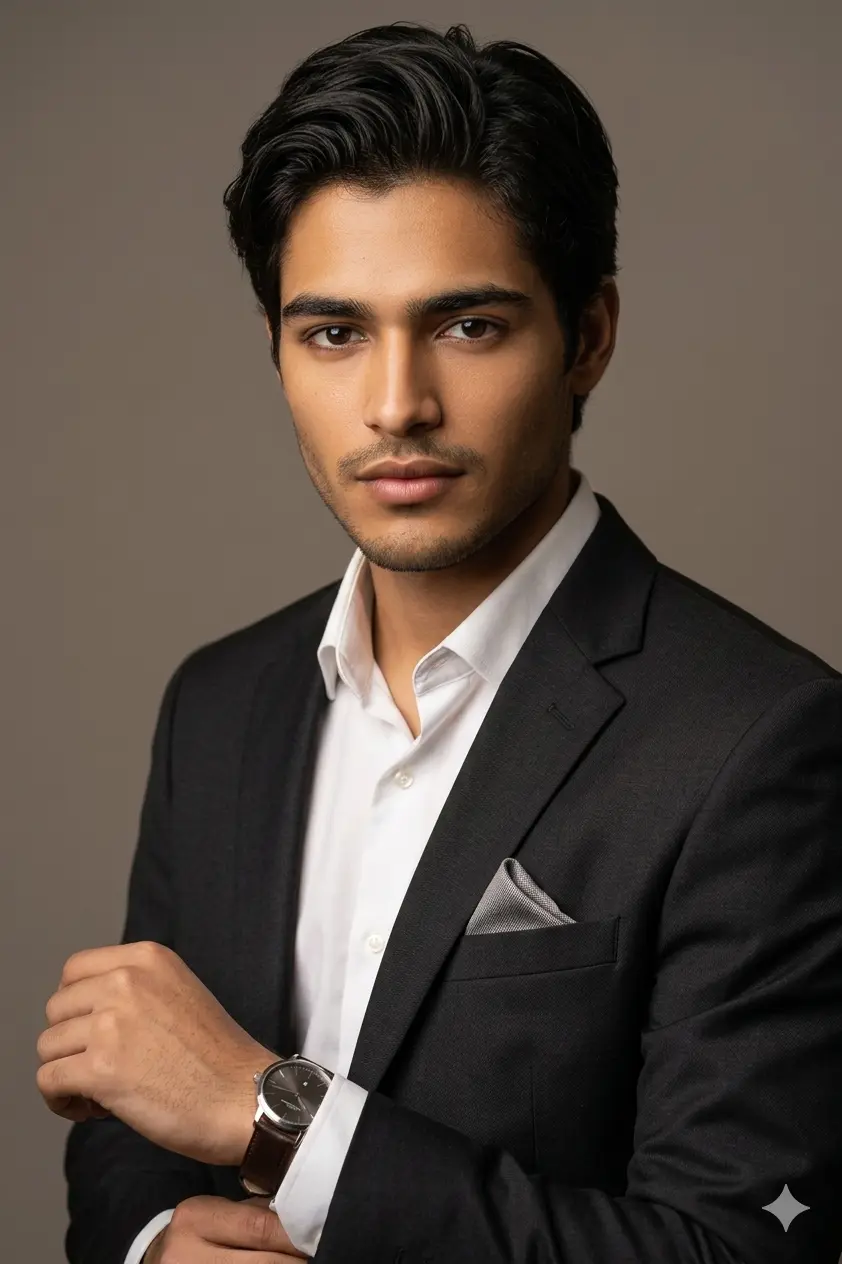
Professional Photo Prompt for LinkedIn: Dark Suit Headshot
Use the face, skin tone, facial features, and hair of the person in the uploaded reference photo exactly as shown. Do not change or alter the face or hair in any way. Keep them 100% identical to the reference. Generate a hyper-realistic professional LinkedIn headshot photograph of the man in the uploaded reference photo. OUTFIT: Charcoal black slim-fit suit jacket, crisp white dress shirt, no tie, top button open, pocket square neatly folded. Dark brown leather strap watch on left wrist, round silver case, watch partially hidden under shirt cuff, only strap and case edge visible. GROOMING: Hair neatly combed and styled, clean side part, no flyaways, light natural hold, freshly groomed appearance. Beard neatly trimmed and shaped, clean jawline edges. Skin clean and natural, no heavy retouching. POSE: Chest-up framing, body angled 15 degrees left, face turned directly toward camera, chin slightly down, shoulders squared and relaxed, confident composed expression, natural direct eye contact, no forced smile. SETTING: Solid warm medium grey seamless studio background, perfectly clean, no props or distractions. LIGHTING: Professional three-point studio lighting, soft key light from upper left casting gentle dimension on face, subtle fill light from right balancing shadows, thin rim light separating shoulders from background, even natural skin tone rendering, no harsh shadows. CAMERA: Canon EOS R5, 85mm f/1.4 lens, shallow depth of field, razor sharp focus on eyes, natural skin texture, soft background blur, high resolution output. MOOD: Corporate, polished, quietly confident. Senior professional LinkedIn portrait quality. 8K ultra realistic, professional photography quality, human-taken feel, sharp focus, masterpiece.
Gemini AI Prompt
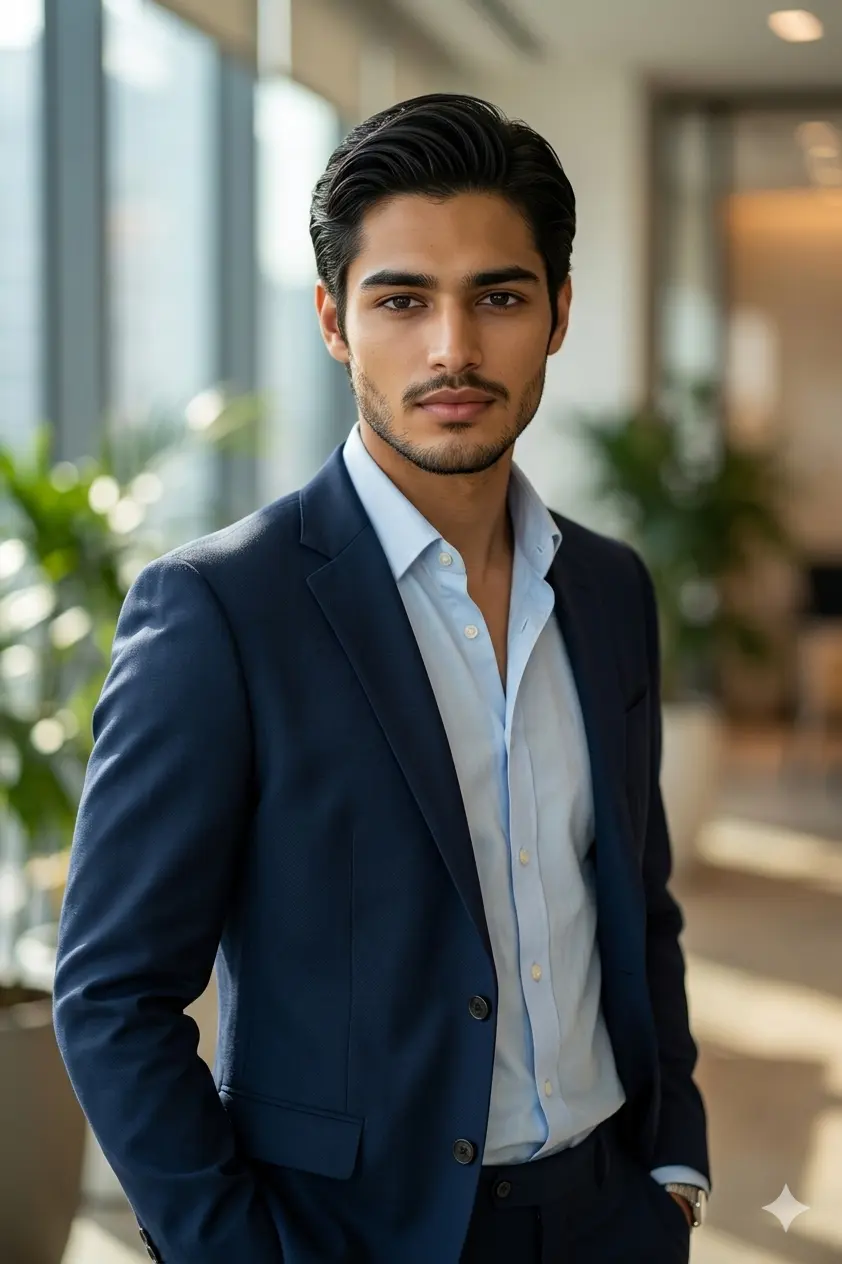
Gemini Prompt for Professional Photo: Corporate Bio Portrait
Use the face, skin tone, facial features, and hair of the person in the uploaded reference photo exactly as shown. Do not change or alter the face or hair in any way. Keep them 100% identical to the reference.
Generate a hyper-realistic professional corporate bio photograph of the man in the uploaded reference photo. OUTFIT: Deep navy single-breasted blazer, pale blue Oxford shirt underneath, collar open, no tie, blazer buttoned, clean sharp silhouette. Minimal silver watch on left wrist, round case, leather strap, watch sitting partially under blazer sleeve, only strap and lower case edge visible. GROOMING: Hair cleanly styled back, smooth and controlled, no loose strands, professional neat finish. Beard lightly trimmed, well shaped along jawline and upper lip, clean edges. Skin fresh and natural looking. POSE: Upper chest framing, standing upright, body slightly angled right, face directly toward lens, arms relaxed at sides, one hand loosely in trouser pocket, composed professional expression, direct eye contact. SETTING: Softly blurred contemporary office interior, floor-to-ceiling glass windows, warm indoor ambient light visible in background, subtle greenery out of focus. LIGHTING: Natural window light falling from left, soft reflector fill from right, gentle catchlight in both eyes, warm editorial tone, shadow depth on right side of face giving dimension. CAMERA: Canon EOS R5, 85mm f/1.4 lens, shallow depth of field, tack sharp focus on eyes and face, smooth background bokeh, realistic fabric and skin texture. MOOD: Modern executive, trustworthy, approachable. Company website bio and press kit quality. 8K ultra realistic, professional photography quality, human-taken feel, sharp focus, masterpiece.
Gemini AI Prompt
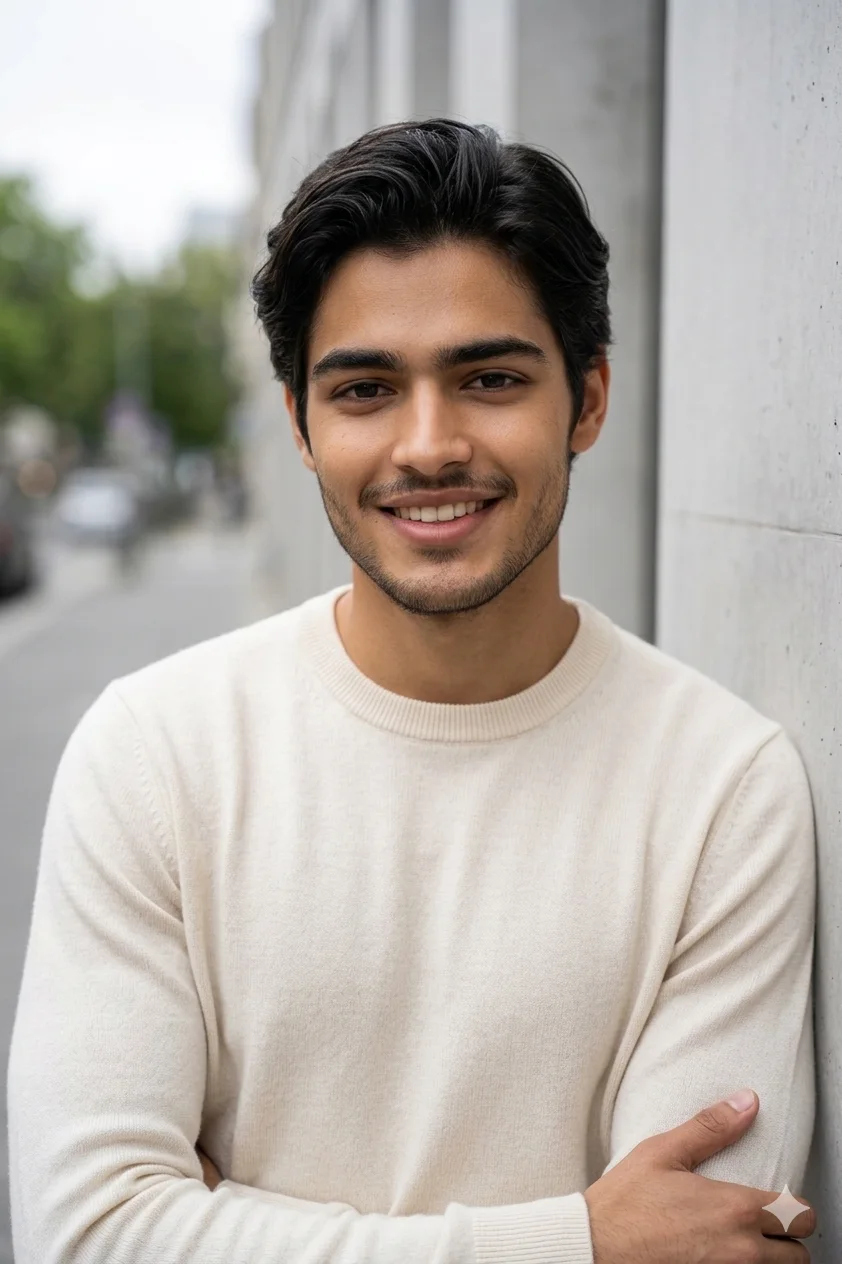
Professional Photo Prompt for Men: Outdoor Smart Casual
Use the face, skin tone, facial features, and hair of the person in the uploaded reference photo exactly as shown. Do not change or alter the face or hair in any way. Keep them 100% identical to the reference.
Generate a hyper-realistic professional outdoor editorial headshot photograph of the man in the uploaded reference photo. OUTFIT: Cream fitted merino wool crewneck sweater, tailored dark charcoal trousers, clean white leather minimal sneakers, no accessories. GROOMING: Hair naturally styled, light texture, clean and controlled, no messy strands, casual yet polished finish. Beard neatly trimmed, even length throughout, clean neckline. Skin natural and fresh, no shine. POSE: Chest-up framing, leaning very slightly against a clean architectural wall, arms loosely crossed at chest level, face directly toward camera, relaxed natural expression, easy confident half smile, eyes sharp and engaged. SETTING: Clean urban outdoor location, smooth concrete architectural wall behind, soft out-of-focus street and greenery in mid-distance, open airy feel, generous negative space above head. LIGHTING: Soft overcast natural daylight, even diffused outdoor light with no harsh shadows, cool to neutral outdoor color tone, clean editorial street photography lighting quality. CAMERA: Canon EOS R5, 85mm f/1.4 lens, shallow depth of field, razor sharp focus on face, smooth natural background bokeh, realistic fabric texture and skin detail. MOOD: Personal brand, smart casual, modern professional. Clean editorial outdoor feel, approachable yet sharp. 8K ultra realistic, professional photography quality, human-taken feel, sharp focus, masterpiece.
Gemini AI Prompt
Professional Photo Prompt for Resume: Formal White Background
Use the face, skin tone, facial features, and hair of the person in the uploaded reference photo exactly as shown. Do not change or alter the face or hair in any way. Keep them 100% identical to the reference.
Generate a hyper-realistic professional resume portrait photograph of the man in the uploaded reference photo. OUTFIT: Dark charcoal formal blazer, white dress shirt, neatly pressed, no tie, clean and sharp from collar to chest. GROOMING: Hair neatly combed, clean side part, smooth and flat, no flyaways, freshly barbered look. Clean shaven face, smooth jawline, no stubble. Skin even toned and natural, no heavy editing feel. POSE: Head and shoulders framing tight, face directly toward camera, perfectly upright posture, neutral confident expression, slight natural calm smile, both shoulders level and relaxed. SETTING: Plain pure white seamless studio background, completely clean, no shadows on background surface. LIGHTING: Flat soft even studio lighting, balanced equally on both sides of face, no directional shadows, clean uniform light for resume and CV standard, natural skin tone. CAMERA: Canon EOS R5, 85mm f/1.4 lens, minimal depth of field, sharp crisp focus on face and eyes, clean high resolution output, no heavy retouching feel. MOOD: Formal, clean, interview ready. Resume, CV, and job application portrait quality. 8K ultra realistic, professional photography quality, human-taken feel, sharp focus, masterpiece.
Gemini AI Prompt
ChatGPT Prompt for Professional Photo: Startup Founder Portrait
_*]:min-w-0 gap-3 standard-markdown”>
Use the face, skin tone, facial features, and hair of the person in the uploaded reference photo exactly as shown. Do not change or alter the face or hair in any way. Keep them 100% identical to the reference.
Generate a hyper-realistic professional founder portrait photograph of the man in the uploaded reference photo. OUTFIT: Clean white fitted crew neck t-shirt, tailored dark navy trousers, premium leather belt, no jacket, sleeves down, minimal and confident. Subtle dark brown leather strap watch on left wrist, round case, sitting partially under sleeve, only strap and lower case edge visible. GROOMING: Hair styled with light product, natural texture with clean shape, slightly relaxed but intentional, modern finish. Short beard neatly shaped, clean fade along cheeks and neckline, well maintained. Skin fresh and natural, healthy tone. POSE: Three-quarter body framing, standing with one shoulder slightly forward, arms loosely at sides, weight shifted to one leg, face directly toward lens, strong natural expression, relaxed confidence, no stiff corporate posture. SETTING: Modern minimalist co-working space background, softly blurred exposed brick wall, warm Edison bulb lighting visible out of focus, open creative workspace atmosphere. LIGHTING: Warm natural window light from upper right, soft fill from left, rich skin tone rendering, gentle shadow dimension on left cheek, warm editorial indoor tone, catchlight clearly visible in eyes. CAMERA: Canon EOS R5, 85mm f/1.4 lens, shallow depth of field, sharp focus on face and upper body, creamy smooth background bokeh, natural realistic texture throughout. MOOD: Tech founder, startup culture, personal brand. Confident, real, modern. Not corporate, not casual. Right in between. 8K ultra realistic, professional photography quality, human-taken feel, sharp focus, masterpiece.
Which Prompt Fits Which Situation
These five prompts are not interchangeable, even though they’re all labeled “professional.” The dark suit LinkedIn headshot and the resume photo both use plain backgrounds, but the resume prompt is flatter and more formal on purpose, since job applications call for zero personality in the lighting. The corporate bio portrait and the founder portrait look similar at first glance, but the founder prompt drops the blazer for a plain white t-shirt and uses a looser, three-quarter body pose, since founder photos are meant to read as confident and approachable rather than corporate. If you’re applying for a traditional job, use the resume or dark suit prompt. If you’re building a personal brand or pitching investors, the founder or outdoor smart casual prompt fits better.
Tips for best results
The corporate bio and founder prompts both rely on warm window light instead of flat studio light. If your reference photo was taken under yellow indoor bulbs, Gemini tends to push the skin tone too warm in the output, so a neutral daylight photo balances this out. For the outdoor smart casual prompt, keep your reference photo’s background simple. A bright colored wall or object behind you can bleed into the blurred concrete background instead of staying neutral gray. Swapping outfit colors works cleanly across all five prompts. Navy worked fine in place of charcoal on the dark suit prompt, and the lighting and pose held up without any other changes needed.
Frequently asked questions
Q: Why does the founder portrait prompt use a t-shirt instead of a blazer like the other prompts?
A: The founder prompt is built around startup and tech culture, where a plain white t-shirt with a confident three-quarter stance reads as more authentic than a blazer. If you swap in a blazer, the co-working space background and relaxed pose will look inconsistent, so it’s best to keep the outfit as written for that prompt.
Q: Will Gemini keep my beard shape accurate across all five prompts?
A: Beard grooming is described differently in each prompt, from a light trim in the LinkedIn shot to a clean-shaven resume look, so Gemini follows whatever the prompt specifies rather than your actual beard length. If you want to keep your real beard, remove the grooming line from the prompt text before pasting it.
Q: Why do some prompts show a watch and others don’t?
A: Three of the five prompts (LinkedIn, corporate bio, and founder) include a watch with specific instructions on how much of the strap should show under the sleeve, while the resume and outdoor prompts leave accessories out entirely. This is intentional. Resume photos are meant to look accessory-free, and the outdoor prompt is styled to look minimal.
Five looks, one selfie. Whether you need a straight LinkedIn headshot, something warmer for a company bio page, or a founder photo that doesn’t feel stiff, there’s a prompt above built for it, not a generic one stretched to fit.