
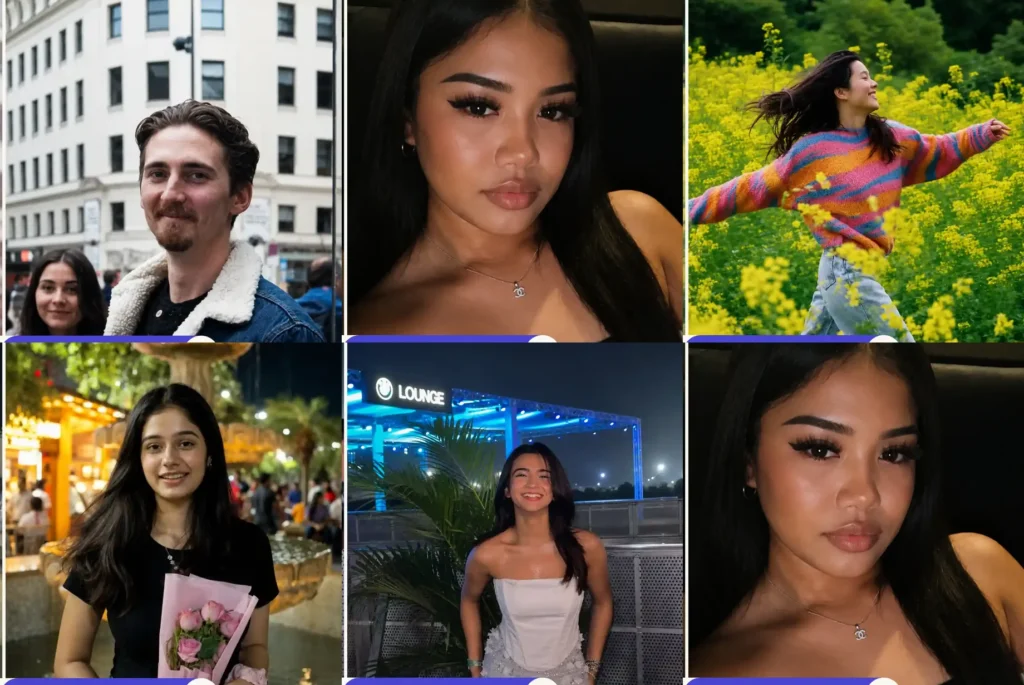
Why Most AI Photo Enhancer Prompts Ruin Your Face
If you have ever tried to fix an old grainy photo or a dark selfie using ChatGPT and ended up with a face that looks slightly “off,” you already know the real problem is not enhancement, it is identity drift. A good photo quality enhancer prompt for ChatGPT fixes resolution, noise, lighting, and blur while keeping the subject’s actual face, expression, and pose completely untouched, and that single instruction is what separates a usable prompt from a re-generated stranger.
Most people paste a vague line like “make this photo better” into ChatGPT and get an over-smoothed, plastic-looking result. The prompts below are built differently, each one was tested directly on ChatGPT’s image tool and targets one specific problem (grain, low light, background clutter, phone quality, motion blur, distorted hands) so the AI knows exactly what to change and, just as importantly, what to leave alone.
Whether you are cleaning up an old scanned print, brightening a dark selfie, or trying to get your phone photo to look like it came off a DSLR, these prompts are written and tested for ChatGPT (they also work on Gemini if you prefer that tool), and they are built to avoid the two most common failures: fake detail invention and identity change.
5 Photo Quality Enhancer Prompts for ChatGPT and Gemini
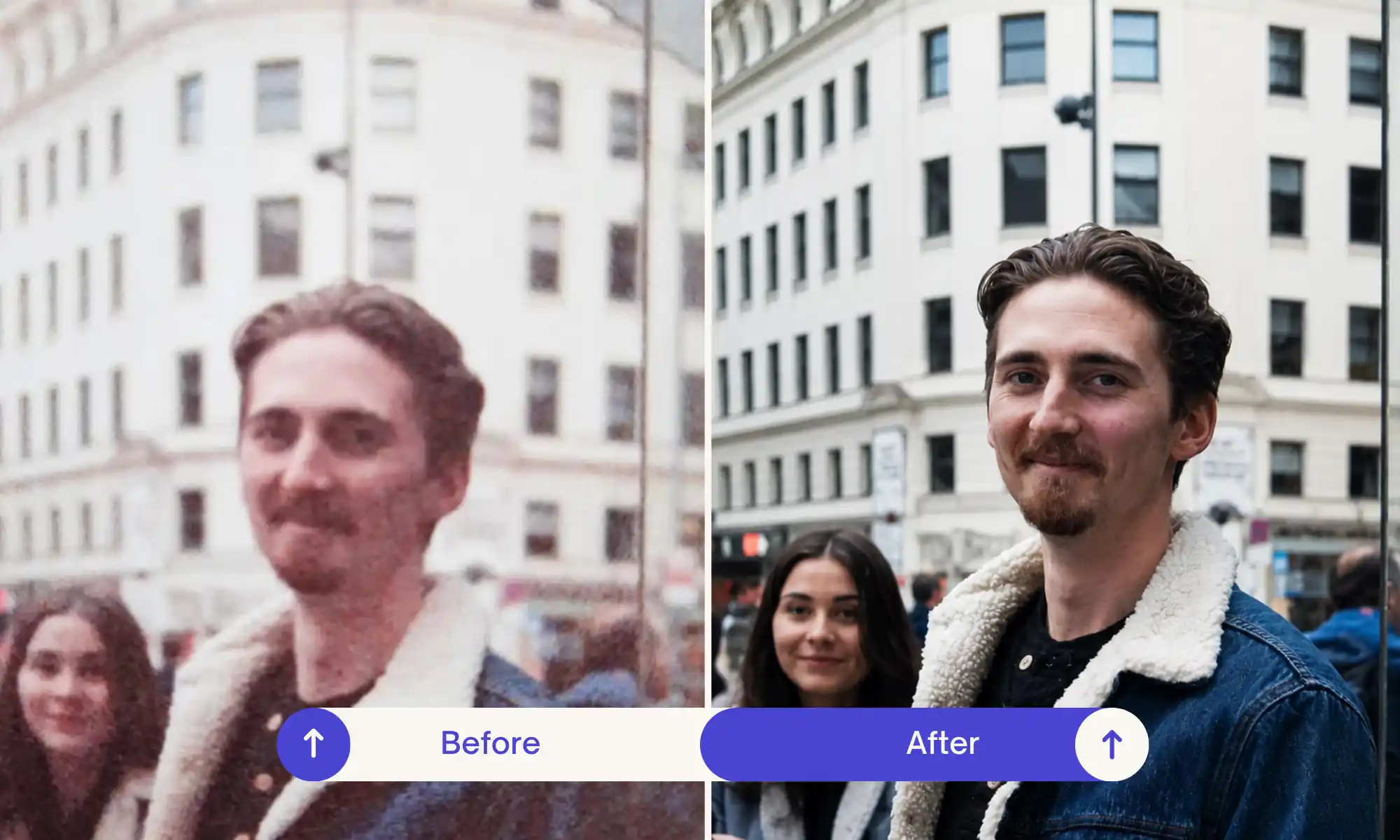
AI HD Photo Enhancer Prompt – Grainy/Print Photo to Crisp High Definition
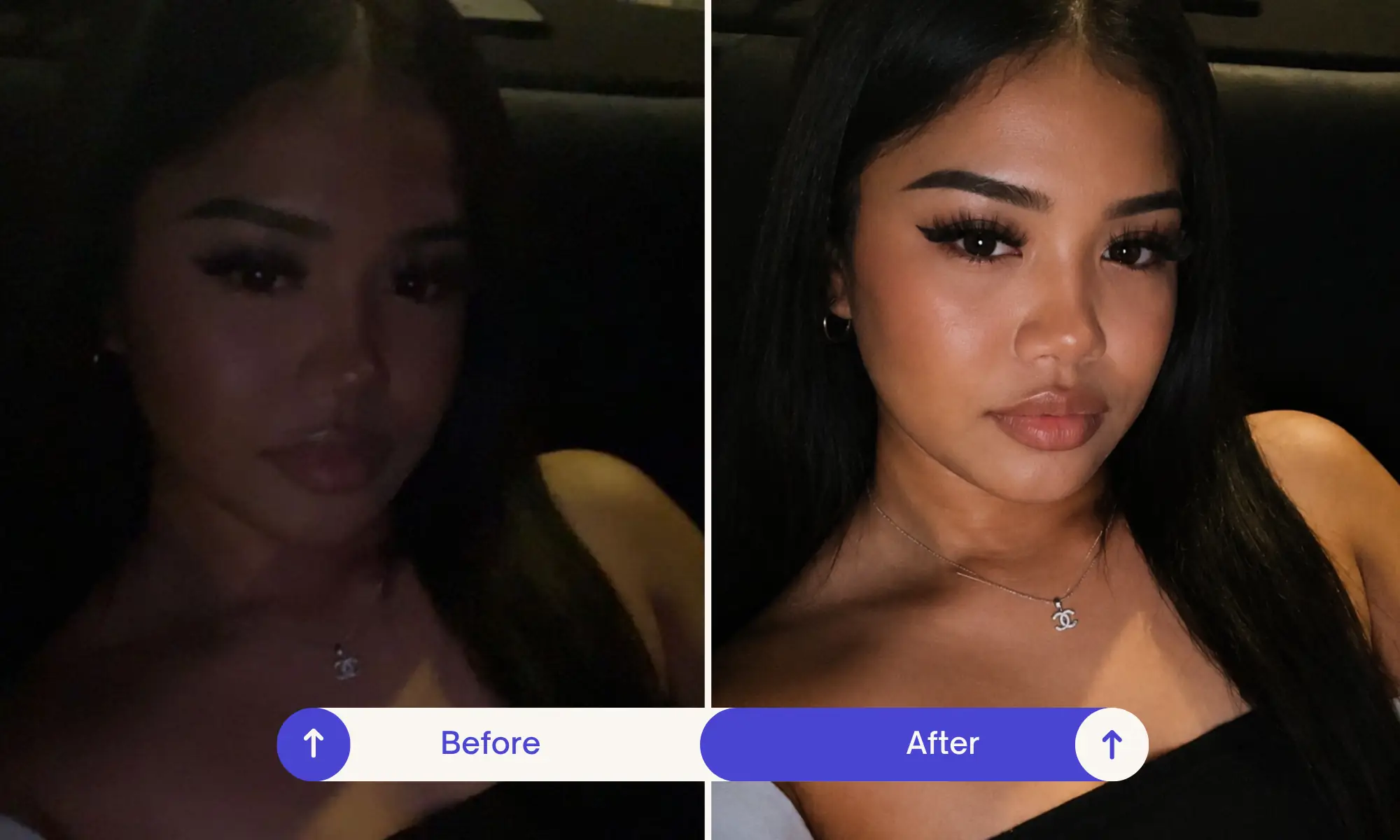
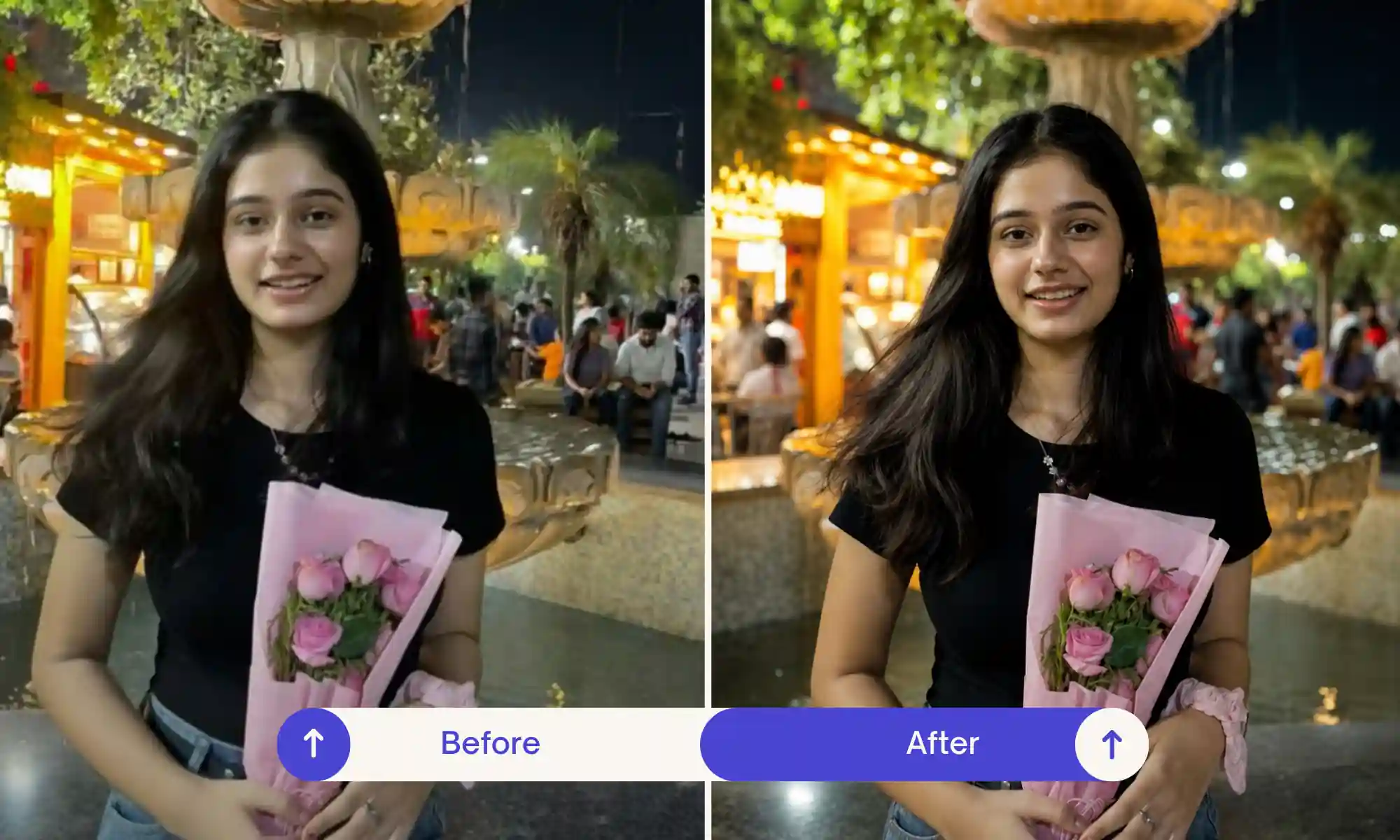
AI Low-Light Selfie Enhancer Prompt – Fix Dark Photos Naturally
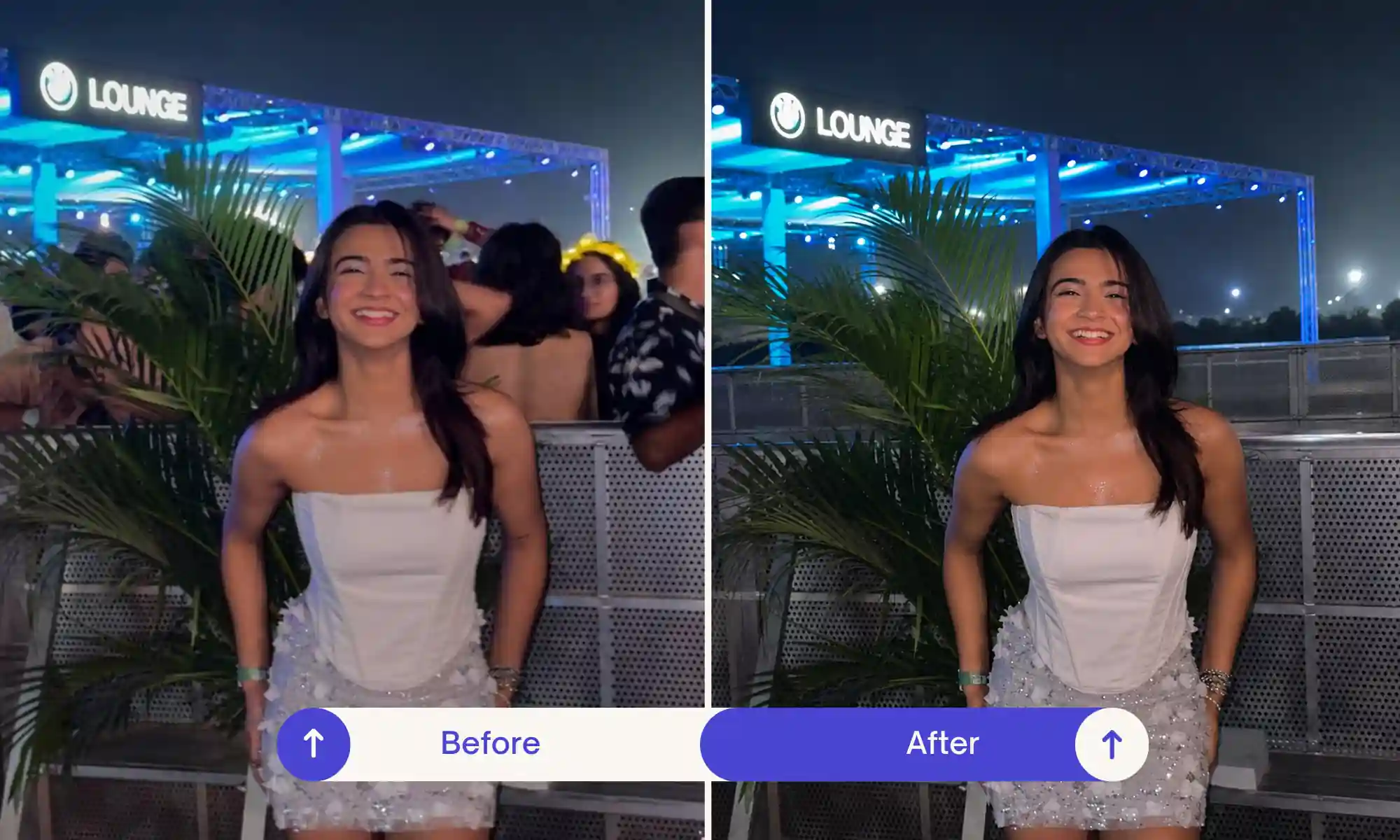
Remove Unwanted People from Photo Background – ChatGPT Prompt for Clean Solo Photos
Phone Photo to DSLR Camera Quality Prompt – AI Enhancer for Professional Camera Look
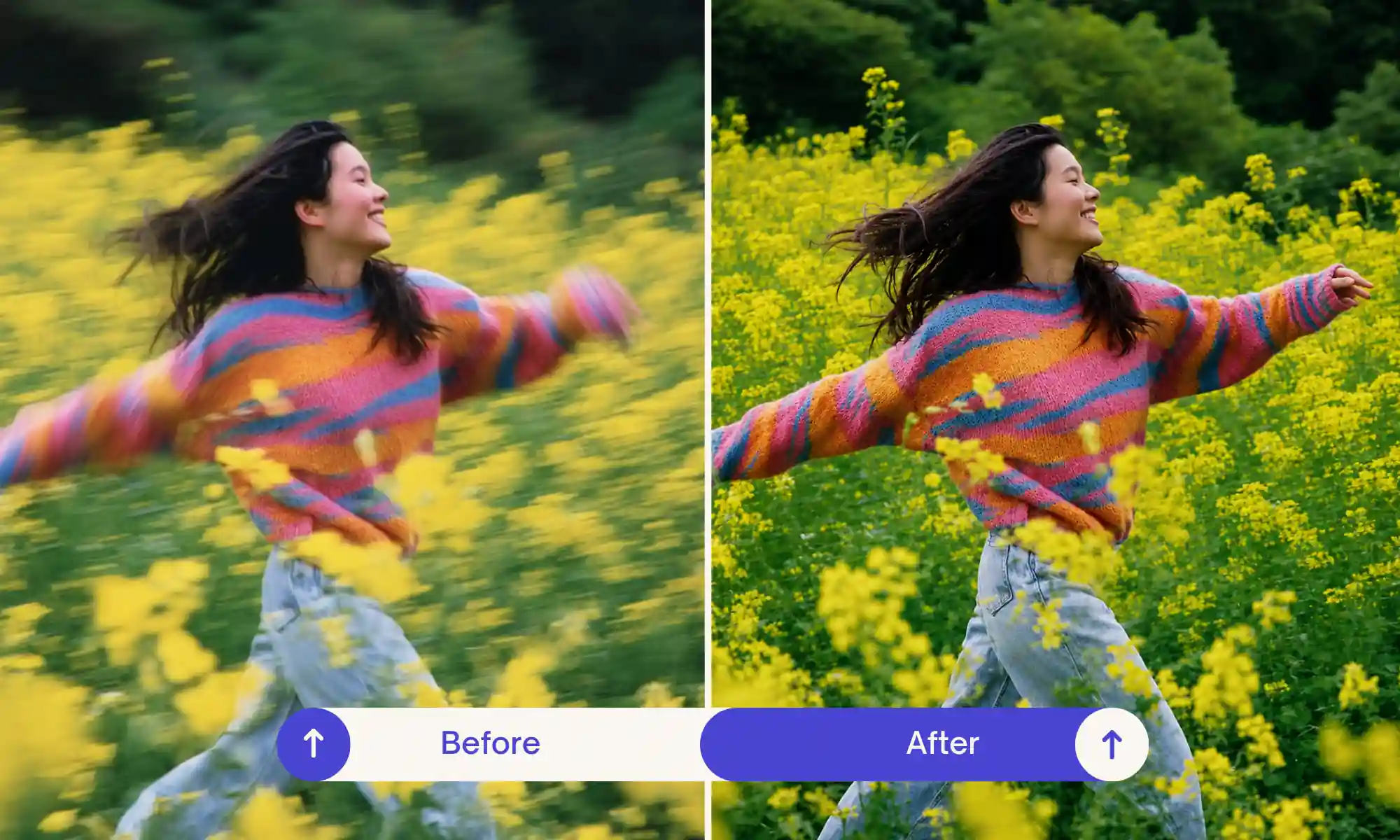
AI Motion Blur and Hand Correction Prompt – Fix Blurry Movement and Distorted Hands
How to Use
- Upload your original photo directly to ChatGPT, then paste the matching prompt below exactly as written, no need to describe your photo separately since the prompt already tells ChatGPT what to look for.
- For the grainy/print photo prompt, use the highest-resolution scan or photo of the print you have. A blurry photo of a photo will limit how much clarity ChatGPT can actually recover.
- For the low-light selfie prompt, make sure the face is at least partially visible in the original, if the shadows are too extreme and the face is fully black, ChatGPT has nothing to rebuild from and may guess.
- For the remove unwanted people prompt, works best when the background behind the extra people is a simple continuous surface (wall, sky, street), busy backgrounds are harder for ChatGPT to fill seamlessly.
- For the phone-to-DSLR prompt, a well-lit original phone photo gives ChatGPT the most realistic bokeh and color grading result, very dark or backlit phone photos limit how convincing the depth effect looks.
- For the motion blur and hand correction prompt, if only the hands are distorted, you can mention that in your own words after pasting the prompt so ChatGPT focuses its correction there first.
Tips for Best Results with These Enhancer Prompts
- When testing the grain/print removal prompt on ChatGPT, it sometimes over-corrects the color tint and leaves skin looking slightly too cool, if that happens, just ask it to “warm the skin tone slightly” as a follow-up instead of re-running the whole prompt.
- The remove-people prompt works well on solid backgrounds but can leave a faint texture mismatch on patterned backgrounds like brick or tiled floors, zoom into that area before you save the final image from ChatGPT.
- On the hand correction prompt, run it once on ChatGPT and check finger count carefully, occasionally it fixes blur but still leaves one hand slightly oversized compared to the other, a quick “make the left hand proportional to the right” follow-up usually resolves it.
Frequently Asked Questions
Why does my enhanced photo sometimes look too smooth or artificial?
This usually happens when the prompt does not explicitly tell the AI to preserve original skin texture, that is why each prompt above includes a negative instruction against “plastic skin” and invented detail, if it still happens, ask the AI to “keep visible natural skin texture, do not smooth further.”
Can I use the low-light selfie prompt on a group photo?
Yes, but results are more consistent on solo or close-up shots since the AI has to balance brightness across every face individually, on group photos it sometimes brightens the front subject more than people in the back, so a follow-up asking to “balance brightness evenly across all faces” helps.
Will the DSLR-quality prompt change my background completely?
No, it only adds a realistic depth-of-field blur behind you using your existing background, it does not replace or redesign the background, if you want a different background entirely, that needs a separate background-change prompt.
Final Thoughts
A photo quality enhancer prompt for ChatGPT or Gemini only works if it fixes the actual problem in your photo without touching your face, and that is exactly what these five prompts are built to do, whether it is grain, low light, unwanted people, phone quality, or motion blur and hand distortion. Pick the one that matches your photo’s issue, paste it in exactly as written, and you should see a genuine improvement in a single try. Try them out on your own old or blurry photos and tag us on Instagram at @image_promptlab, we would love to see your before-and-after results.
For photos that are damaged, not just blurry, use these photo restoration prompts. If Gemini changed your face, the Gemini face fix guide shows how to keep it the same.